
DOSBox supports IPX since version 0.65 and it improved significantly the efficiency of MOO2 MP Online Games. Keep in mind that by using DOSBox also Linux, 2k, Vista and even Mac users are now able to join our Multiplayer Games. Therefore, DOSBox is now considered as the de facto solution for multiplayer. In the meanwhile, the IRC channel irc.quakenet.org#moo2 (This link works for FF+chatzilla/Opera users. IE users should use the client at the top of the sidebar) is the new meeting point for MOO2 Online Games. It was introduced in August 2006 after most MOO2 players started to use the new DOSBox version.
Before the guide starts, I'd like to add a small FAQ section.
A) Why should I use the DOS version?
First of all, regarding multiplayer the DOS version orion2.exe is far superior to the WIN version orion95.exe. When you have ever tried to setup a MOO2 network game you may have observed this already: The orion95.exe lags extremely. Up to several minutes between the turns. You may ask for the reason, let me therefore quote the developer Rob Corell:
"It [MOO2] was definitely developed under DOS. I did the DOS network support, and don't even remember any Win95 testing for MOO2."
To sum it up: Network games under orion95.exe are considered unplayable but the orion2.exe provides appealing results.
B) I have installed the Windows version orion95.exe. Why should I read this guide?First, most MOO2 CDs contain both versions, i.e. orion95.exe and orion2.exe. Second, even if you own just a "Windows only" release (e.g. the Atari Download version), you should take into account that there are just minor differences between Windows and DOS version. It is patchable with the last official 1.31. Proceed with step 1B in this case.
C) DOSBox is just too slow. Do I have to use DOSBox?
There are alternatives to DOSBox, but I don't recommend them any longer (there are far too many problems involved on modern hardware). Actually, the newest DOSBox version (with default settings) works pretty fast on modern computers. So you have probably just an old DOSBox version (just update DOSBox in this case) or an older computer. In the latter case you should read step 7 to speed up DOSBox.
DOSBox Guide for MOO2 Multiplayer:
1. There are two ways to "install" the DOS version orion2.exe. In any case I emphasize to use the default folder. Users with a different folder name should take notice of this important NOTE. This 8 character limit under DOS is the main error of most DOSBox users.
1.A Conventional Way (win95/98/ME/XP can use this way.)
Find the Install.exe on your Moo2 CD and double click it to start the DOS installer. For further details see step 1 and 2 in LordBrazen's guide. Note, that step 2 in LordBrazen's guide isn't optional! (I.e. without this step you will need to mount your CD drive, too.) And I recommend to use the default folder: C:\MPS\ORION2
Any trouble? Try it with 1.B then:
1.B Unconventional Way (Linux, MAC, Win2k users or users without install.exe/orion2.exe have to use this way.)
Just copy the entire CD onto the hard drive! Once again, I recommend to use the default folder: MPS\ORION2
If orion2.exe and/or rkernel.com file(s) are missing:
Unzip this rkernel.zip file in your MOO2 directory and proceed. No worries about orion2.exe: The 1.31 zip patch in step 2 contains the exe file of the dos version.)
Once all the files are copied you will possibly need to edit the 'ORIONCD.INI' file within the C:\MPS\ORION2 folder. Change the top line in the file to C:\MPS\ORION2
2. Apply the moo2v131.zip patch. Important! 1.4 will only work with the ENGLISH 1.31 patch. (German or multilingual 1.31patch won't work. But German or other versions are no problem after applying the above mentioned patch.)
3. Apply the v1.40 patch (Latest version - 1.40b23 (MOO2v140 patch FAQ) You should follow these instructions and an 1.4 desktop shortcut is quite helpful (see step 6).
4. Download DosBox 0.72 and install it.
The steps 5-8 are related to the dosbox.conf file. The default location of this text file is:
C:\Programs\DOSBox-0.72\dosbox.conf
5. Open your dosbox.conf file with an usual text editor and and enable IPX, i.e. edit the following entry
[ipx]
# ipx -- Enable ipx over UDP/IP emulation.
ipx=true
6. We need now the exact MS-DOS name of your MOO2 working directory. The above-mentioned 1.4 shortcut is now helpful, especially if you have a different folder than default. Therefore, right click the 1.4 desktop shortcut - Properties - Program tab and copy the entry of the Working field to the clipboard:
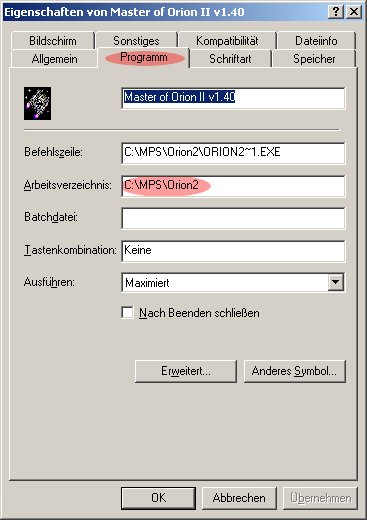
After following the steps under 1A or 1B, the default entry should be
C:\MPS\ORION2
Paste now (from the clipboard) this entry to the [autoexec] part of the dosbox.conf file. With the default entry the necessary lines are:
[autoexec]
# Lines in this section will be run at startup.
mount c c:\MPS\ORION2
c:
orion2~1
The first two bold lines represent the so called mounting, i.e. DOSbox will launch an exe file from this working directory now. The third line is the command to launch the orion2v140.exe in this folder.
NOTE: For those without this shortcut and/or different working directory: Keep in mind that the 8 character limit under MS-DOS truncates names. For example C:\Microprose\Masteroforion2 will be translated to C:\Microp~1\Master~1
This note is now slightly emphasized since ~95% of the problems are caused by incorrect mounting. Click now the DOSbox shortcut to test your setup:

MOO2 will be automatically launched inside DOSbox:
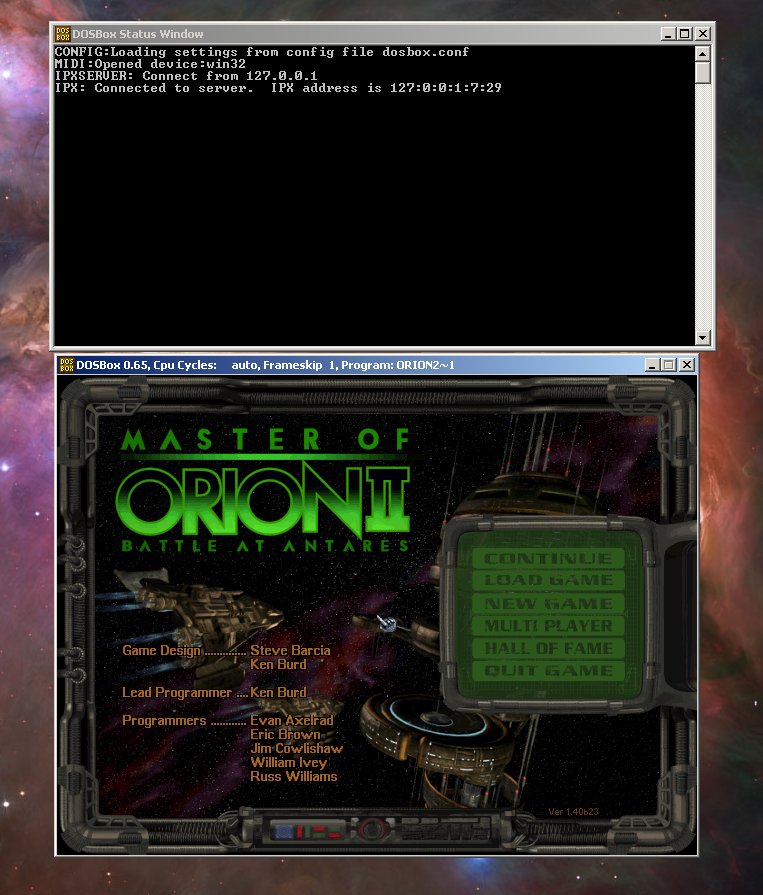
Use ALT+ENTER to play fullscreen. BTW there is also a DOSbox Status Window, which will list the incoming connections (see step 8 for details).
7. You will observe that DOSBox is a bit slower than usual Dos under Windows but you can speed it up by editing the dosbox.conf file. Following edits work nicely on my old computer:
frameskip=1
core=dynamic
cycles=auto
But you should test these settings in singleplayer. Some players need a frameskip of 2 or 3. See also the comments: Some players report improved speed by output=ddraw.
8. MULTIPLAYER COMMANDS
The [autoexec] lines for a singleplayer game were explained in step 6. For an MP game you need a further command. And it is important that you add it above the orion2~1 line. I recommend to add the lines as they are mentioned under 8.C but let us first look at the default example separately:
8.A JOINING MULTIPLAYER GAME
[autoexec]
# Lines in this section will be run at startup.
mount c c:\MPS\ORION2
c:
ipxnet connect xxx.xxx.xxx.xxx
orion2~1
You have to add the IP of the host behind the ipxnet connect command (for example: ipxnet connect 83.239.211.21) Use http://whatismyip.com/ to obtain your IP.)
8.B HOSTING MULTIPLAYER GAME
[autoexec]
# Lines in this section will be run at startup.
mount c c:\MPS\ORION2
c:
ipxnet startserver
orion2~1
In this case you don't have to add an IP.
By playing against different players (different IPs!) you will have to change the DOSbox.conf quite a lot. I therefore strongly recommend to add a shortcut of your dosbox.conf file to your desktop:

8.C DOSbox.conf Fine Tuning
You may have noticed that the "#" is used for comments inside the dosbox.conf. It is a convenient way to disable unused lines inside your dosbox.conf. For example, my current dosbox.conf for singleplayer games looks like this:
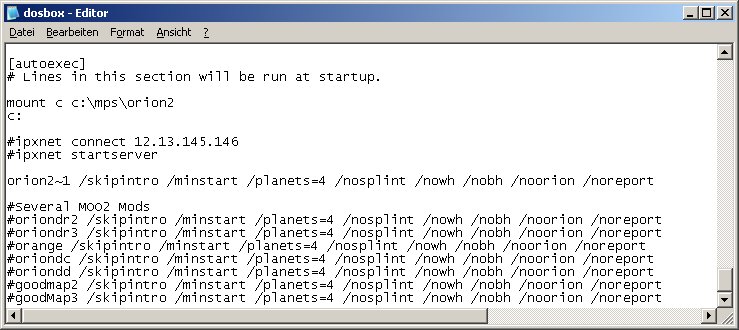
When I am interested in an MP game I just enable one of the bold lines mentioned under 8.A or 8.B. BTW, I have also added further MOO2 Mods at the bottom which can coexist in the same folder with 1.31/1.40. Note, that there are also the so called switches (/nowh etc.) added. They are explained in the 1.40 FAQ.
The IP in this screenshot is just an example. When you try to connect to this IP you will get this error message inside the DOSbox Status Window:
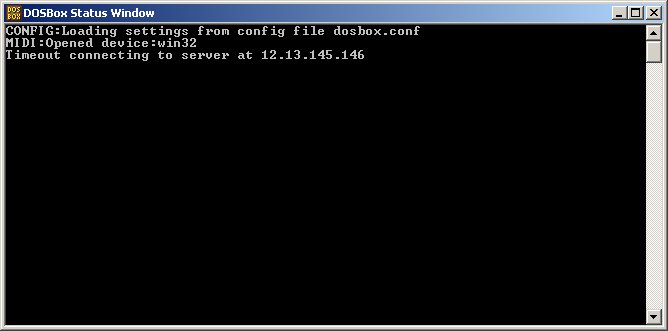
9. The host needs to forward PORT 213 UDP (default), if he uses a router/firewall.
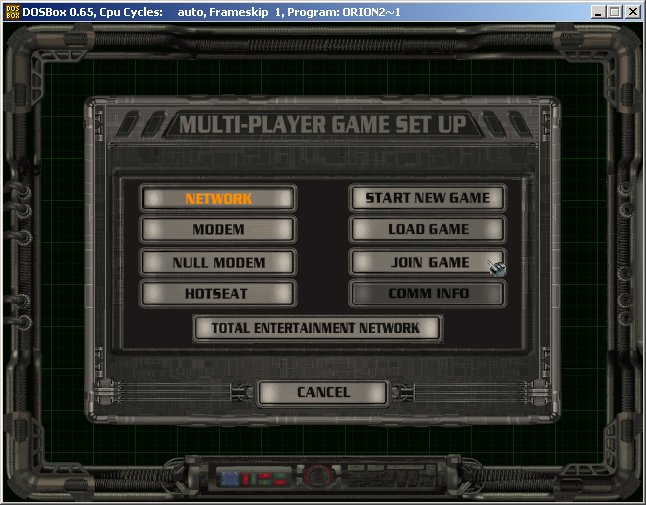
10. Inside Moo2 you have to click the following buttons:
Multiplayer
Network
Join Game (only the host has to click Start New Game)
11. Run the setsound.exe and choose the soundblaster compatible option there. See this post for details and further fine tuning.
12. Ahhhh.......you need opponents? Join irc.quakenet.org#moo2 (This link works for FF/Opera users. IE users should use the client at the top of the sidebar) and you will find some DOSBox players there. See also this post for further IRC clients.
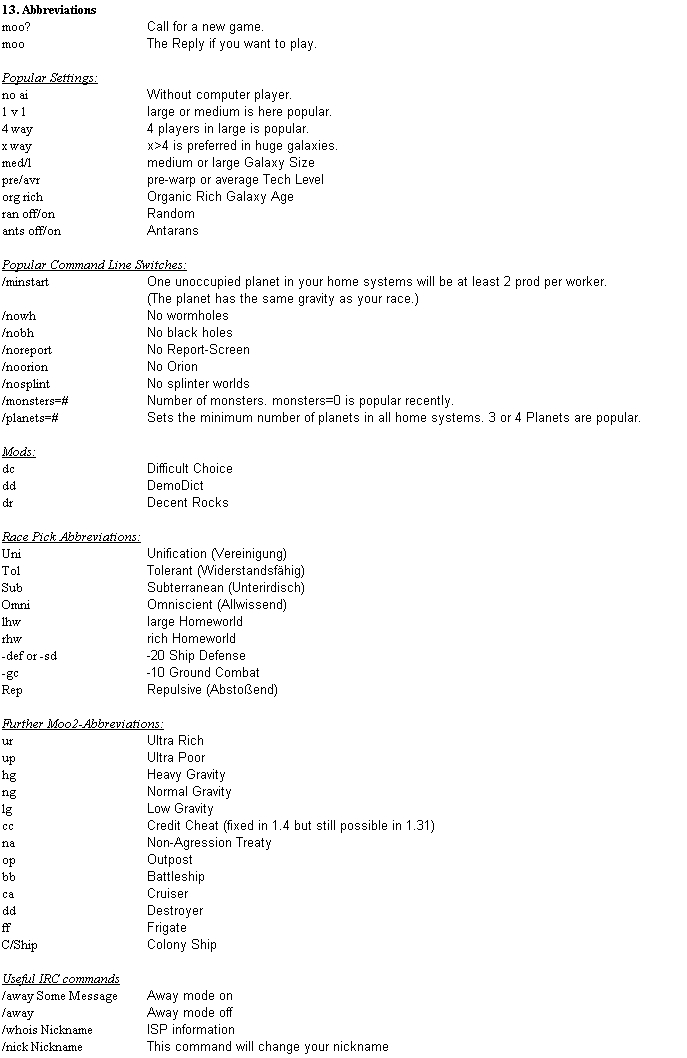
13. Popular Settings/Abbreviations (click it to enlarge)
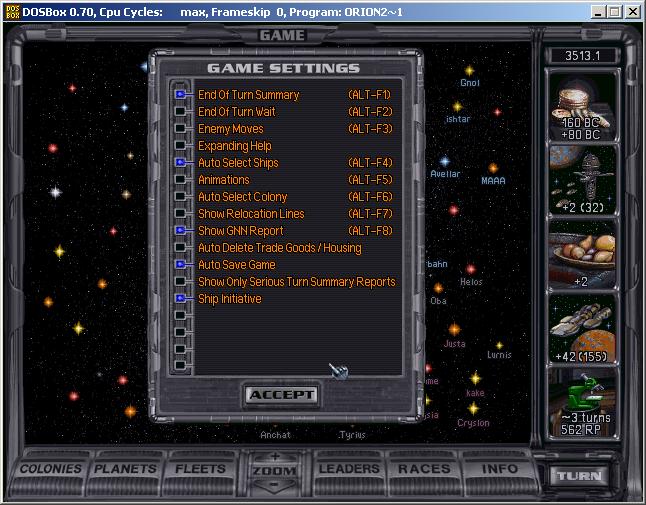
Don't forget to enable ship initiative (default in Online Games). It is the last entry in this menu:


98 comments:
How do you set the switches?
The switches in the command line of your shortcut (the shortcut you use for kali) are ignored when you use DosBox.
I paste the switches therefore behind the last line of point 7. Instead of:
orion2~1
I have:
orion2~1 /skipintro /minstart /nowh /nobh /planets=3 /nosplint /noorion /noreport
in my current dosbox.conf.
You can also type this directly into DosBox.
To enable hardware graphics acceleration change in the [sdl] section of your dosbox.conf:
For Windows use output=ddraw
For Linux output=opengl
This drastically improved the game speed on my machine.
Hello,
How do you apply the 1.40 patch on Linux or Mac? It is an Windows Executable! Under DOSbox it does not run...
If you can help me ICQ me at 77077134.
The b23 patcher won't run under Linux. But maybe the b24 patcher. See LB's post for details.
I was able to run the patch file in linux using Cedega ( http://www.transgaming.com/index.php?module=ContentExpress&file=index&func=display&ceid=29 ). Cedega is a winbdows game emmulator 'sorta, I think the old Wine win emmulator might work also dunno. For wine google search (Microsoft Windows Compatibility Layer wine) or search for wine in a package search.
I always get a page fault when trying to apply the patch with wine
Anon,
try to patch it on a Windows PC then. In this case, you have just to transfer the orion2v140.exe to your Linux comp. Or mail me if you need further help. (moo2niacIREALLYDONTLIKESPAM(at)gmail.com)
LB thought about a 1.4patching exe which can be run from DOSBox directly....but it seems he has time trouble right now.
I'm trying to install my MOO2 cd on my G4 Mac, but I can't seem to find the "ORIONCD.INI" file. Not even when I look through the hidden files! Any idea how I can get to it?
@ Destian: On Windows OS, the ini file can be generated with any text editor.
@ Randy: I have never heard of this problem in combination with the 1.4 patch and DOSBox. Are you using the 1.4 patch? The comm failure message could be caused when the rkernel.com file is missing in the moo2 folder, but the 1.4 patcher requires that file, so I doubt a 1.4 user would remove it later on. Make sure that both players have the rkernel.com file, which is offered on this page. EDIT: Seems you have solved it already.
@siron
Thanks, yeah, it was just a careless edit of the dosbox config file.
Thanx Siron, I'll try that :-)
I've also played MOO2 on Windows 98 via Virtual PC and it works great!
Though upgrading it with the 1.31 patch will break the game's visuals into pink and yellow dots :-( Haven't found any references to that. Ever heard of it? It's as if there is suddenly something wrong with the videocard.
I've ran into another snag. My roommate and I are attempting to play each other. We're behind the same router and on the same network. When either of us creates the server, it allows the other person to connect, and it shows "Waiting to Join" on one screen and "2 Humans Connected" on the other. However, when the host starts the game, only the host goes through to the race selection screen. Have you guys heard of anything like this happening before? We're both running XP SP2 with Dosbox 0.72 and patched to 1.4.
<-- n00bified... We didn't realize the host had to select their race first. All is solved!
Yes, but these graphical glitches can only occur without DOSBox.
Hi Sirion,
I also love MOO2. I'm actually learning to program direct x so i can make my own 'MOO4' game. I think MOO3 was quite poor in many ways, and I want to make something more like MOO2 with my own twists. Anyway, I love that desktop pic you have above. Could you send it to me? Many thanks. My email is point_2_666@yahoo.com.au
Russ
P.S. What race do you prefer if you are not going custom?
Hello Mystic X,
I play several races, no real preferences. And my desktop pic is Hubble's sharpest view of the Orion Nebula.
hey Mystic_X,
you should give Galactic Civilisations II a try!
It's just about everything Moo3 should have been :-P
Could someone post up the orioncd.ini text so I can make my own orioncd.ini file? I got the game off Limewire and it seems to have come without the file... :s
Hey all,
Sorry it's been a while since my return (had a few antarans to deal with). I own a copy of Galactic Civilisations II and I think it is great. But I have already thought about what i want exactly. Ever heard of Imperium Galactica 2. The battles in that were good. In fact - it was all pretty good. I would like to try and find that game somewhere.
@Digimonkey
It is just this above-mentioned line.
I'm having trouble with the autoexec commands for DosBox. I have edited the dosbox.conf file, but no matter what I change, it always does the same thing. It seems as though there is another file that it is referring to, but there is no other file. I have installed the 1.40b23 patch. When I run DosBox it automatically starts MOO2 and it always does /skipintro /minstart /planets=4 /nosplint /nowh /nobh /noorion /noreport. I want to play a one player game (or hotseat multiplayer) without the /noorion or /nowh options. Any suggestions?
I also don't have the OrionCD.ini file. I'm trying to run the game on an osX mac with DOSbox. I understand that I can create the file with a text editor but am totally confused as to what I should type or copy in the file.
Sorry I'm not Windows/DOS hip.
When MOO2 was copied to the default folder the text file contains just the above mentioned line:
C:\MPS\ORION2
Not sure if this works under MAC OS. Alternatively, you could mount the CD drive. Check out the DOSBox forum for further assistance by MAC users in this case.
Many mouse issues reported on this game but I can't find a solution. My mouse sticks. Game asked to install Direct 2.0 and I said no. My drivers are not the most recent but not that old. I tried to update to version 1.40 but it didn't help. There must be a simple solution with so many enjoying this game.
@belt ways,
when you observe these issues under dosbox see step 7. Additionally, you could alter the sensitivity option in the dosbox.conf.
DirectX is only related to the Windows version of MOO2.
Hi,
I really like the DosBox Thing
But when i tested it in Single Player, I had Problems in Saving and Loading Games.
Autosave always worked (lost a few rounds now and then) but manually saving caused a DosBox Error, the whole thing hanged up.
And loading games caused the same chrash. Except when loading from Start Menue.
What is wrong???
Hi - I get no sound with DOSBox 0.7.2 under OSX 10.5.5 when trying to run MOO2 :-( Any idea what I'm doing wrong?
I can't get it to find the ORIONCD.INI file either, and I've created the file in the C:\MPS\ORION2 directory, exactly as instructed.
I'm running Windows XP SP3, so it's not the same problem that the Mac users were having.
Also, when I DO get it running, is there a way to set up 1.4 specifically for games between 3 specific machines on a LAN? My friends wish to play against each other, not against people online.
@anon1: Have you solved the Save-Load issue? NEver heard of it before. You should give further infos: OS, dosbox.conf etc.
@Wizardling: What steps did you have tried so far?
@anon2: Could be the case that file extensions for txt files are not displayed currently. So you actually have ORIONCD.INI.txt which prolly wont work.
@anon3: Just use the local IPs of the different machines (not the external IP of the router).
Widescreen monitors are becoming dominant, and MOO 2 in a full-screen DosBox is horribly distorted on a wide monitor. I run DosBox as a window. For me that works OK visually but has 1 disadvantage - if Win XP times out and reverts to the log-in screen (e.g. if the doorbell rings and it takes more than a couple of minutes for me to deal with the situation), DosBox crashes.
These crashes are related to
output=overlay
There are no crashes by using
output=ddraw
Additionally, ddraw enables the windowresolution option. You should try windowresolution=1024x768 on widescreen monitors.
hi there im trying to play against a friend and i followed all of the steps excactly and when either computer hosts the other computer cannot see any games on the "Join Network Game Setup" screen...
any help?
Do you wanna play in a LAN?
Just use the local IPs of the different machines (not the external IP of the router) then.
during the dos bootup the computer says tunneling client failed to connect at xxx.xxx.xxx.xxx
I assume xxx.xxx.xxx.xxx stands for the correct IP of the Host. Make sure that the host followed step 9 then.
Anyone else having issues trying to get the music and animations (diplomacy, opening, etc) to play properly? Tried with DOSBOX 0.72 on 3 different machines so far (Windows XP home, Windows XP Pro, Ubuntu 8.04).
Game plays well other than that.
When attempting load, it gets to the intro than kicks me out and says:
, Networking [Entry 1] could not be found.
Any ideas?
Are you sure that you have used the above mentioned patches?
What CD Version do you have?
hi guys, there is a new version of doxbox which doesnt contain that file that should be rewritten. Can somebody post here link for 0.72 doxbox pls from alternative site.. thx
Q: But why does my DOSBox config file refuse to pop up in the DOSBox directory? It's always being outputted to a hidden directory in my "Documents and Settings". How do I fix this?
A: that is intentional in order to make dosbox work nicely on Vista and with more then one user on your system.
Just use the shortcut to edit it and it should be fine
I get a problem when firing up Dosbox:
"Cannot locate all game files. Please insert CD"
Any ideas?
Alright i'm using DBGL to run MOO2 with a roommate, I have followed the hosting steps and he the joining steps but whenever he launches it shows the "server timeout" error in the dosbox right before opening moo2. Not sure what is going wrong.
In my ipx command box I have:" startserver 1024 " I have the 1024 in because without it, it says that it failed to initialize the server.
He has: " connect xxx.xxx.xxx.xxx " my correct local ip address.
we are both running version 1.31. And i have my router forwarding port 213 to my computer.
Any ideas? reply here and email me if you feel generous: jtrainusu@gmail.com
thanks
I was able to resolve my previous problem. For some reason my computer (mac) needs a port higher than 1024 to host.
my command line would be: ipxnet startserver 1024
also my port 213 would be forwarded to my computer.
any computer connecting would be: ipxnet connect xxx.xxx.xxx.xxx 1024
hope this helps others who may have this problem in the future.
Justin
Hi, it's 11/10/09 and I just wanted to say thanks. Through DosBox I have my all time favorite (MOO2) running better than ever on my new 64 bit Vista system.
I had to follow the instructions and hints here and on the readme file (e.g. core=dynamic, cycles=max, etc). Also the dosbox.conf file was hidden, you have to search for hidden files.
Thanks again, and now maybe I can try multi-player....
When I launch the install.exe, the setup starts but only says "checking drives" and never starts the actual installing process. Anyone knows what I should do?
Has anyone come across the problem of not being able to refit or even design ships? For some reason after doing all of this and a reinstall, that's what happened. Along with battle pods and a few other things missing.
Do you have Tactical Combat enabled? Otherwise you can't design ships.
no one seems to be answer the question of what went wrong when u get this error "Cannot locate all game files. Please insert CD". i really want to play moo2, just SP tho. and i could use some help figuring this out.
Check step 1B. Missing orioncd.ini will cause that error.
i believe i have that covered the file that i changed was called, Orioncd and it was a notepad app. i didnt see a .ini but i assumed that was it. am i wrong?
Check your folder options.
Folder options - view
Make sure that
"Hide extensions for known file types."
is disabled.
yes i assumed correctly that was the file. its just supposed to be C:\MPS\ORION2 correct?
Yes.
And you have copied all files from CD into that folder?
For most versions even an empty orioncd.ini works. IIRC for some versions you need it in caps but other versions have trouble with caps.
i believe i did, is their a way i could show you?
gibs hier auch jemand der deutsch kann? brauche hilfe! meine erste frage wenn ich den patch 1.40 instaliere ist das spiel dann immer noch auf deutsch? ich hab die vollversion von der gamestar 1/99 da ist win95.exe und die Orion2 datei enthalten wie geh ich am besten vor?
bitte um schnelle antwort den ich würde gern mein geliebtes MoO2 online spielen :)
You should note that in DOSBOX 7.3, the dosbox.conf file doesn't appear normally.
You have to go into Dosbox then, at the the command prompt in Dosbox type "config -writeconf dosbox.conf" and then press the "Enter" key. Then type 'Exit' to leave. The file will then be there.
Since most folk are using 7.3 and onward, you might wanna add this as a step.
Otherwise, excellent guide.
Seems to depend on OS.
Just installed on Win7 and the file is in
C:\Users\%USER%\AppData\Local\DOSBox
now.
And it is called
dosbox-0.73.conf
now.
There is additionally an entry in the start menu "edit configuration"
to edit this file.
If this helps I too was getting the error "Cannot locate all game files. Please insert CD" but have found a way of making it work. I installed to the c:\mps\orion2 directory then copied all files from the cd to the c:\mps\orion2 directory. Then ran the patches and now no more error.
Does it run smoothly with Windows 7? Do I need Windows 7 Professional for the XP Mode? What about the 64bit version? I would appreciate if anyone could share his/her experience.
Awesome website for a legendary game btw.
I followed the directions here and successfully installed MOO2 running in DosBox on my Windows 7 Home Premium 64bit computer.
Hi,
at first, I wanted to thank for the great guide, but there are two things I wonder about...
a) I don't have an setsound.exe in my MOO2 folder, is it possible for me to somehow get sound to work in dosbox? It was a win version of Moo2, but the Orion2.exe was on the disc as well.
b) Is there a way to change the language from English back to German after applying the two patches? Even though I'm completely capable of understanding English, a good chunk of nostalgia is lost if all the technologies and stuff aren't German anymore. Plus, I technicly would have to re-memorize what they all are called (even though most of them have similiar names in both languages).
Hi Guys the date is 05/01/2010 i was wondering if you all still play MOO2, and if anyone has MOO2 Running on vista, i have the english version of patch 1.31 and 1.4, still won't apply, the rKernal file link is broken, i cant dl that... if there is anyone willin to assist me could u please leave me your email adress so i can get in touch with you to help me figure out how to get online?
In my case the rKernel file was missing too.
Found it still in the original MoO2 directory apperantly the installer forgot to copy it to the game directory.
So thats what I did, explored the MoO2 CD, found the rKernel, copied it and just pasted next to the patch in game files.
I tried to install moo2 on my win 7 comp. using dosbox, it says to type orion2 to play game after install but it doesn't work and the 2nd box says install failed. what am i doing wrong?
Have you tried step 1b ?
remember to install it to a folder without spaces in the name. For me this is in the C:\MPS folder
Hello, its unbelievable how many people are trying to make MoO2 work at this date.. Anyway Im only having a small problem with the mouse speed in dosbox (7.2). Its slow and without acceleration, I have a normal microsoft mouse working ok in windows and most Dos games. I tried altering the conf file but it only made it worse. ANY ADVICE FOR SMOOTH MOUSE MOVE?
Heya, this has been a fantastic help getting the game to work on DOSBOX on my laptop. Thanks.
However, I find that the game is too small on the screen. In full screen mode, there is a big black border (windoboxed) around the game, which I can't move my mouse into. The game probably only takes up about a third of the area of the screen.
It's just about playable, but I have to go very close to the screen to see it. I don't have this problem with any of the other DOSBOX games I run.
My screen ratio is 1:0.6 (12 x 7 inches-- I can't figure out if this is widescreen or not). The resolution is 1280 x 800. I am using Windows 7, and it is patched to version 1.4. Cheers!
p.s. I have the same small game screen problem when using the Windows 95 version.
As infogram's ftp server seems to be down, heres an alternative to download moo2v131.zip:
ftp://ftp.atari.com/patches/moo2/moo2v131.zip
I'm getting a 404 on the rkernel.zip file.
Is there an alternative download for it?
I have the original CD, but there is no DOS exe for Orion on it.
Please help. I am looking for a way to play my original mac mooII disc on my new macbookpro (the message says no longer supported) or my older ibook g4. This is the only game I ever seriously played and I would very much like to re visit it. Is there a version of classic 9 I can down load from somewhere - anywhere that will work on either machine? Thank you from frustrated of Streatham.
The easiest way to run MOOII on a new Intel Mac is to forget about your classic Mac version, download DOSbox or better yet a nicer easier to use MacOSX frontend like Boxer http://boxer.washboardabs.net/ , grab the DOS version of MOOII (I'm sure a resourceful person can locate a copy online...) and play that way.
Siron, how did you get DosBox to show up more than 262 MB free harddisk space?
Simply chose 1B then. No install needed.
Dear Siron,
first Id' like to thank you for this great way to play moo2 online against my best friends (they are far away from my current habitation)
Everything works great. But one phenomenon has now occured: Our last multiplayer savegame contains only 2 human players, but the third player is missing in this savegame. 2 players can play but we were 3. Any ideas whats happened?
Stefan
Stefan
If Player A, B, and C started a game but C is missing in the save means that player A or B saved this game while Player C had already left the game via the quit menu.
Therefore Player C should still have the correct auto save in slot 10.
If the autosave of C is overwritten there is still a chance to fix this via hex editing. See the forum for the email address. I would take a look in this case.
I bought this game from impulse so it builds the dosbox config for you. I copied it and have been able to play multiplayer games my question is though, it seems like my dosbox does not use the config file. It always opens to z: and no changes I made in the CFG reflect in the dosbox. Any Ideas? It's like I have to associate it with the game or cfg file somehow and I don't know what to do. Like I said though I can play network games. I just have to enter the code each time for each pc.
Is there a new link for the rkernel.zip? I can't update to 1.4 without it, but the link on your post is dead.
Is this still a valid system? I have been wanting to play this game with other people sense I was a child, I love this game and would enjoy playing against people who have at least half a monkey brain.
Ps, I took a look at the steps and this looks confusing as hell, is there a way to simplify this at all?
It is complicated, but the directions will get you there.
An alternative would be to buy it online (for example Gamestop/impulse for $5.99) which comes with an instaler.
Fantastic game.
Well, no, I know how to get the game started with dosbox, I have actually used this program before, I just dont know about the whole internet connection thing, it makes me a bit dizzy...
Jesus why won't someone simply prepackage a standalone windows 7 version that works without having to bother with all the cryptic setup non-sense.
When I try to run setsound.exe, I get this error: The version of this file is not compatible with the version of windows you're running. Check your computer's system information to see whether you need an x86 (32-bit) or x64 (64-bit) version of the program, and then contact the software publisher.
Any ideas on how to fix this?
I didn't see my problem mentioned, so I thought I'd post. Managed to get my copy to run after a little problem with the path to CD. Now however all the game does is display the Simtex and then Microprose splash screens ... and then nothing. Doesn't crash or anything, just stays on a black screen and doesn't respond to any input. Any ideas? Running on Dosbox Turbo on a Nexus 7.
In reply to my own comment, I seem to have it running now. I found on another site someone mention I needed to increase the available memory from 8MB default to 16MB for the game to run correctly in DOSBOX TURBO on Android.
Well, if you people still read these...
I have a problem, ipxnet connects in dosbox, but my friend still can't see my hosted moo2 games
The reason why this could happen is that you launch different versions of exe. One of you uses b24 patch and other b23. Because of difference in internal date (Lord Brazen has modified internal date of the version in b24 patch), a player who has b23 version can't connect to b24 version. Check that you are using same build.
Not trying to sound like a noob here.
But could some one make a file that auto runs all these patchs/set up things in one click for dos verison?
Why not buy MOO1&2 package from GOG.com for $5.99? It comes with the last revision and is ready to run.
Hello!
I got banned from QuakeNet #moo2 channel for no reason. All I said was "Hello!" before getting kicked shortly after.
I was hoping to maybe catch some multiplayer action. I was connecting from South Africa, maybe that is an issue with the channel moderator. Dopefish was there as well as the moderator (Darza or something along those lines).
Other than that there was nothing much going on at the time of my connecting in the channel. I was just trying to find out which mods are needed and if there were still games going on. This happened this Saturday, 10/01/2016.
Regards,
Risi.
Darza it's a troll that kill moo2 channel. Forget that...
Is this still a valid system? I have been wanting to play this game well designed & one of my favorite game ever.
Yes, MOO2 runs great under DOSbox (and this guide remains good advice). In fact it's really the best way to play, since running MOO2 on a retro PC that meets original specs means late-game AI turns will take a very long time. But on a modern PC the AI is always done in an instant.
A few days back, I was trying different Virtual games and decided to play on Khelraja since I had already used it before. The experience felt smooth and quite engaging from the start. I spent some time exploring different options, and everything worked without any issues. From what I’ve seen while playing on Khelraja, it’s a simple way to enjoy gaming and relax during free time.
Post a Comment